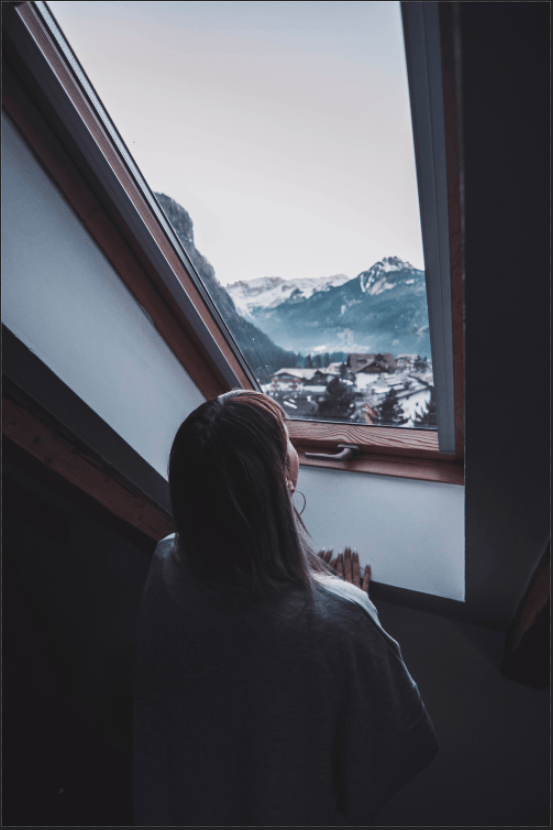
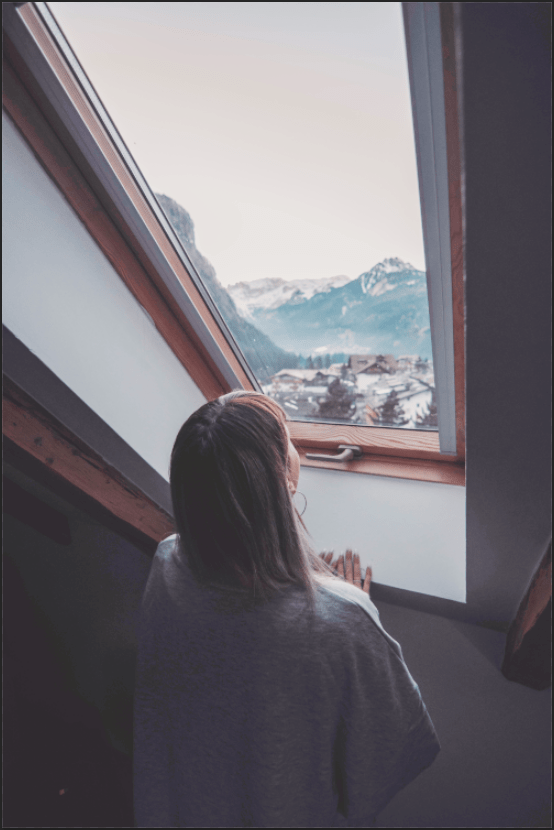
Blending is starting to become one of my favorite things thanks to this part of the project. Blending is not just useful for using a variety of adjustment layers to turn your picture into more a refined image, it also deals with making them to make your image not too dark and not too light. We shadows to light up, but not the highlights. I used Curves layer for this, and the most interesting part is at the beginning – Blending Options – where you can move “This Layer” and the “Underlying Layer”. I did it after putting black on top, white in the middle, & red in the bottom. When you move the two layers, the black arrow (on the left) to the left, the black and red disappears to a part the white is visible. The white arrow (on the right) the process is the same except it makes the white and red invisible to a part the black visible. Underlaying Layer does the same thing but in a different way. The reason why this was done in the first place was just a demonstration to how Blend If works. Happy practicing!
 Alice's Blog