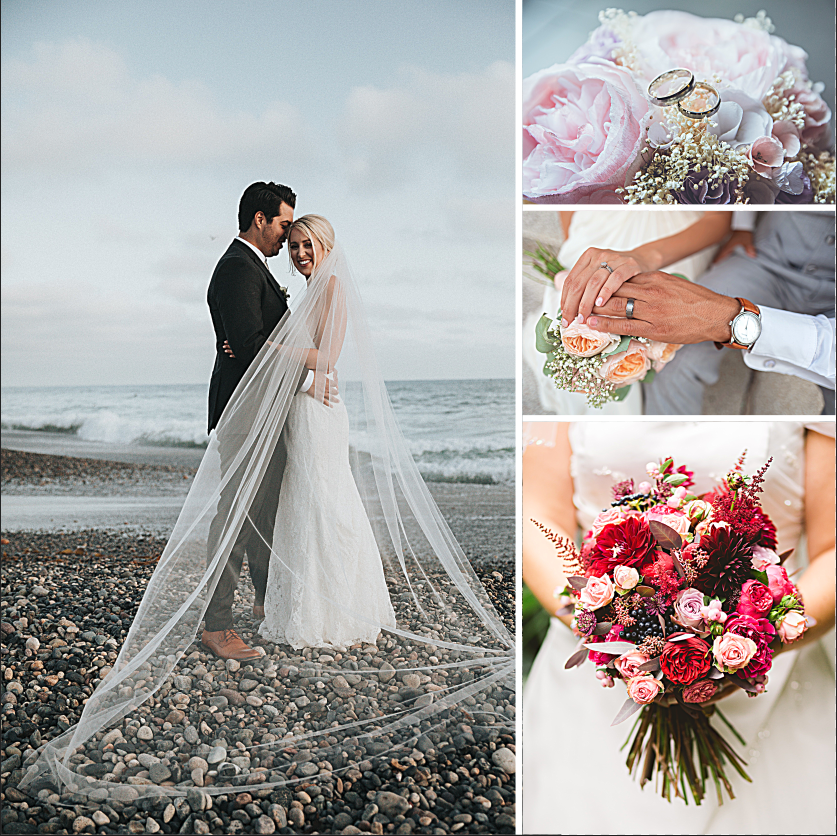
There some interesting things I’ve learned in this project. Smart Guides are used for making your image non-destructive. I duplicated my background image and converted the copy image into a Smart Object (right-click on Layer and click on “Convert to Smart Object”) and named it “smart”. There an icon on the bottom-right of the Layer’s image. For the other copy I named it “regular” because there’s no icon on the Layer’s image. I hold shift to select both layers and made them small, then used Transform (Ctrl + T) to make them big again. It didn’t seem to have any affect, but the instructor shows the regular image starts to lose quality as you resize it from large to small and from small to big. The “smart” image, however, didn’t lose any quality because it’s a smart object. That’s why smart objects are very important for images and layers to become non-destructive when you want to resize them. After I resized and placed the other three images, also the white lines to separate them (Rectangle Marquee and Ctrl + J to duplicate the other two), I sharpened the image to show some details. Filter > Sharpen > Unsharp Mask to do this process, and adjust the Amount and Radius to see how I want to see fit. If it’s too much, I can adjust it again. If I look at my Layer, on the right side there is an icon with two circles. I hold “Alt” and move it to the other three layers for the three images, so it has the same sharpening and I won’t have to do the whole process again.
 Alice's Blog