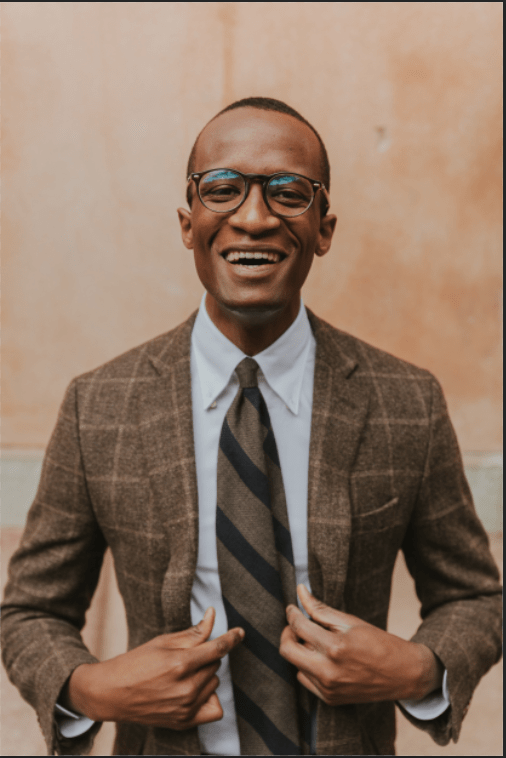
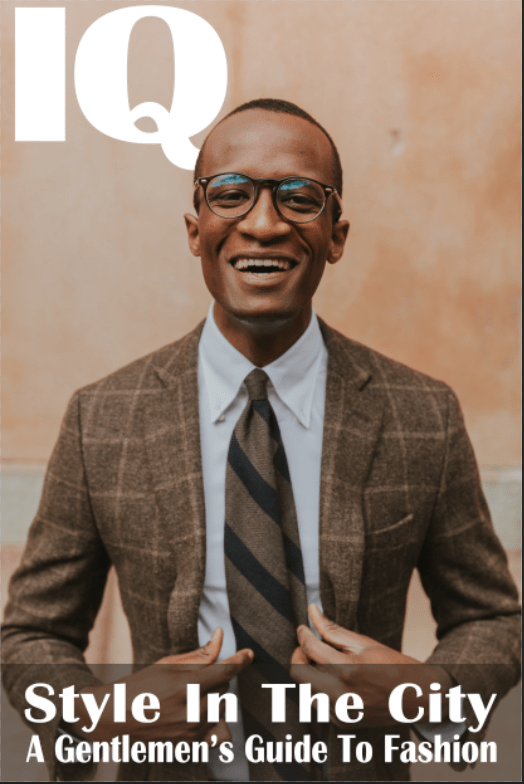
This project was kind of like the Transform, Scale, Rotate, and Align Project. One thing stood was put the text behind then picture. I use the Magic Wand tool to select the part of the spacing, not the subject that I want (make sure to hold shift), turn the text’s invisibility on, and add a layer mask. Part of the text is erased from the subject so unchain the layer masks, which in between, to prevent it from happening. That way I can move the text without any part been erased. I also learned that I can put color on behind the texts. Doing this, I add the Solid Color font (which adds the Color Fill layer), select the color, and invert the layer mask. When that’s done, select the area using the Marquee tool, then press Shift + Backspace and add “White” to the “Contents” layer to fill the area black. Make sure to put the Color Fill layer under the type layers. Feel free to change the color if you don’t like it. It’s good to reduce the opacity a bit to see the background image. I made sure to put the texts in the center of the brown rectangle to look nice using the Align edges at the top. I grouped the texts so I could Align them at the same time.
 Alice's Blog