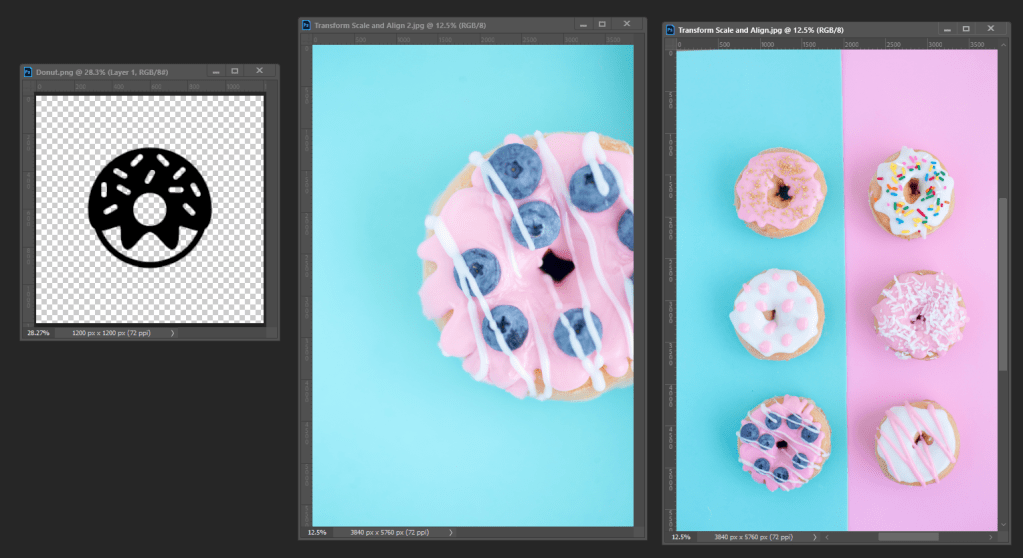

There are a lot interesting things that I’ve learned from this Project. Auto-Select (top-left corner) allows me to deselect an object and pick another one when its checked. However, if the Auto-Select unchecked, it restricts me from clicking any object; I must rely on the layers panel to select one that is meant for the certain layer. When I use transform (Ctrl + T) for the object, certain options will appear on the top of the screen. The target point at the center of the image represents the center of rotation when I rotate the object. When I move the target point in different areas of the image, the image will rotate clockwise or counterclockwise but the center area will be different. Also, resizing the object with both width and height is available if the chain between them is locked. If it’s unlocked, however, I can only resize the image with height or width individually. One thing I never knew was cropping the image allowing it to provide space after placing multiple images altogether. I press C to use the crop tool, and after selecting a size, a large pixel space will appear on the sides, and this is very important: On the top of the screen, there is “Delete Cropped Pixels”. I want to make it is unchecked, because if it’s checked, it’s not recommended – and it’ll delete the personal space that’s needed. When the image is perfectly cropped, I clicked on the Check Mark (on top of the screen, but at the right) to confirm it done. I might forget how to use a crop video, but I’m sure I would look it up anytime if necessary.
 Alice's Blog